Bring calm and focus
back to Slack

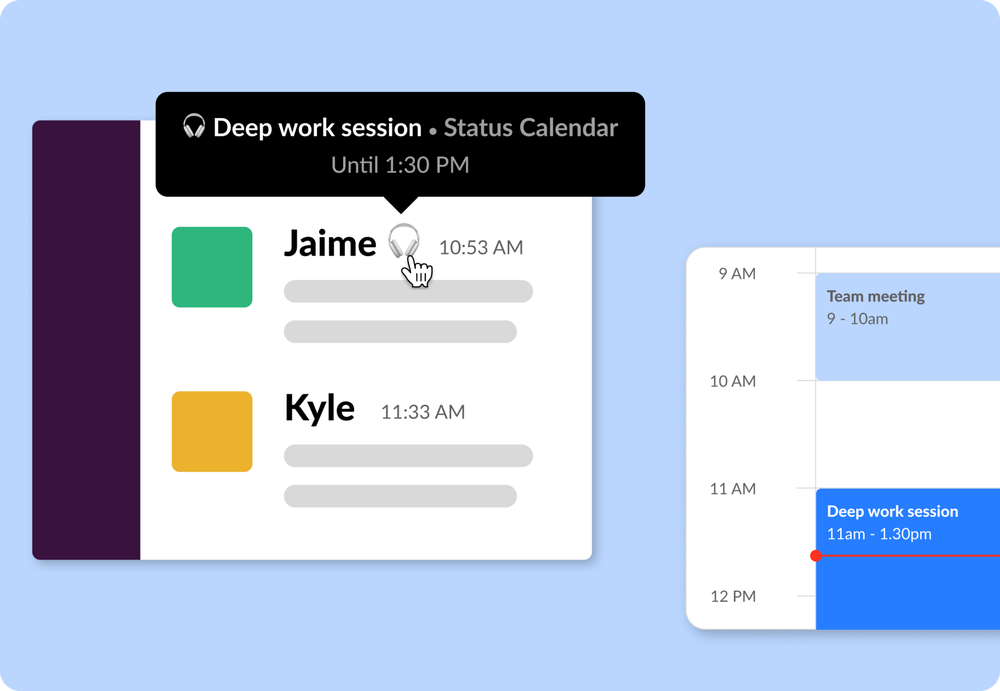
Automatically update your Slack status
Enjoy more focused work and reduced interruptions by automatically updating your status in Slack to let the team know when you need to concentrate and when they can expect a response
- Schedule status changes in advance
- Share what you’re working on
- Sync with Google Calendar
- Achieve focus and deep work as a team
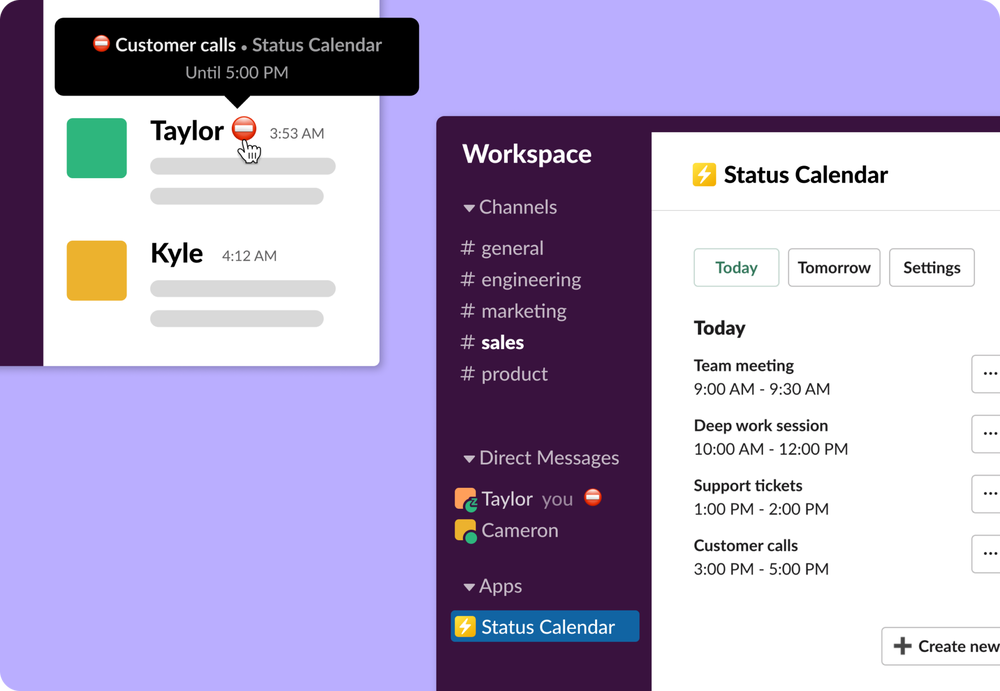
Schedule status changes in advance
Stay focused on the right thing and achieve deep work by planning your workdays and scheduling updates of your Slack status according to your time blocks

Share what you’re working on
Broadcast what you’re currently working on and eliminate distracting check-ins and stressful expectations of immediate responses

Sync with Google Calendar
Connect your calendar and automatically update your status and notification settings whenever a calendar event starts and ends
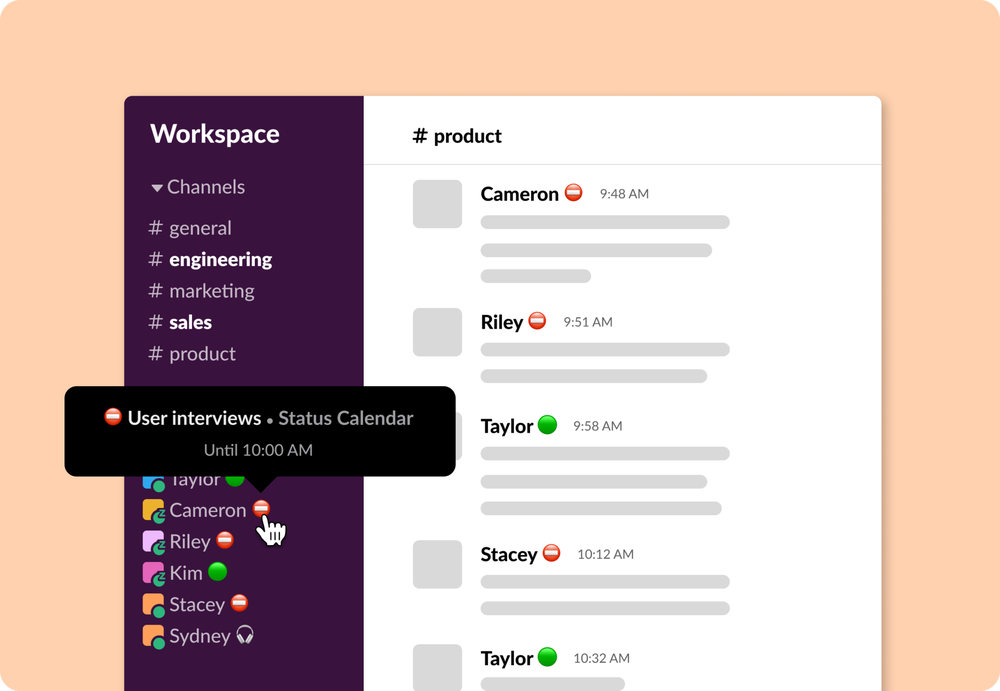
Achieve focus and deep work as a team
Do your best work as a team by helping each other maintain focus, avoid distractions, and concentrate deeply with always up-to-date Slack statuses
Choose your plan
Simple, transparent pricing that grows with you
Save 40% with annual billing
Free
Billed $0 annually
Calendars
- Connect 1 calendarConnect one Google Calendar to sync events to Slack
Status sync
- Select status emojiChoose the status emoji to show during active calendar events
- Select status messageChoose the status message to show during active calendar events
- Select notification preferenceEnable or disable notifications (Do Not Disturb) during calendar events
Events
- Today viewSee all your upcoming events for Today directly in Slack
- Tomorrow viewSee all your upcoming events for Tomorrow directly in Slack
- This Week viewSee all your upcoming events for the current week directly in Slack
Pro
Billed $36 annually
Calendars
- Connect multiple calendarsConnect multiple Google Calendars to sync events to Slack
Status sync
- Select status emojiChoose the status emoji to show during active calendar events
- Select status messageChoose the status message to show during active calendar events
- Select notification preferenceEnable or disable notifications (Do Not Disturb) during calendar events
- Custom status messageDefine the exact status message to show during calendar events
- Custom status emojiDefine the exact status emoji to show during calendar events
- Advanced status settingsDefine status rules based on event types, event titles, and other conditions
Events
- Today viewSee all your upcoming events for Today directly in Slack
- Tomorrow viewSee all your upcoming events for Tomorrow directly in Slack
- This Week viewSee all your upcoming events for the current week directly in Slack
- Daily event summaryAutomatically receive a daily summary of your upcoming events
- Weekly event summaryAutomatically receive a weekly summary of your upcoming events
- Event remindersReceive reminders before a calendar event is about to start
Working Hours
- Set working hoursDefine your working hours to control your default status behavior
- Default status during working hoursChoose a default status to show during working hours when no events are scheduled
- Default status outside working hoursChoose a default status to show outside of working hours when you’re unavailable
Frequently Asked Questions
Click the Add to Slack button above to add Status Calendar to your Slack.
After you install Status Calendar, the app is available for anyone in your workspace to use. To have your Slack status sync with your Google Calendar, you need to connect your Google account. Status Calendar makes it easy for you to do that. You will also receive an email from Status Calendar to help you get started and so you can send us any questions or feedback you have.
Yes, anyone in your workspace can use Status Calendar once it’s installed in your workspace. To automatically update their status based on their Google Calendar events, they just need to connect their Google account.